.png)
📆 Daily Planning in Upbase
Most project management tools help you track work. Upbase goes a step further by helping you plan your day, not just manage projects.
In this article
What appears in Schedule views
Show or hide recurring task instances
Detach a recurring task instance
Daily Planner: your personal planning space
Personal planning tools (Daily Planner only)
Reusable daily/weekly note templates
Time blocking with drag and drop
Saved filters for focused planning
Track your actual time (Daily Planner)
With Schedule views, you can see all your tasks and events in one place, plan your time, and stay focused on what matters each day.
Schedule views overview
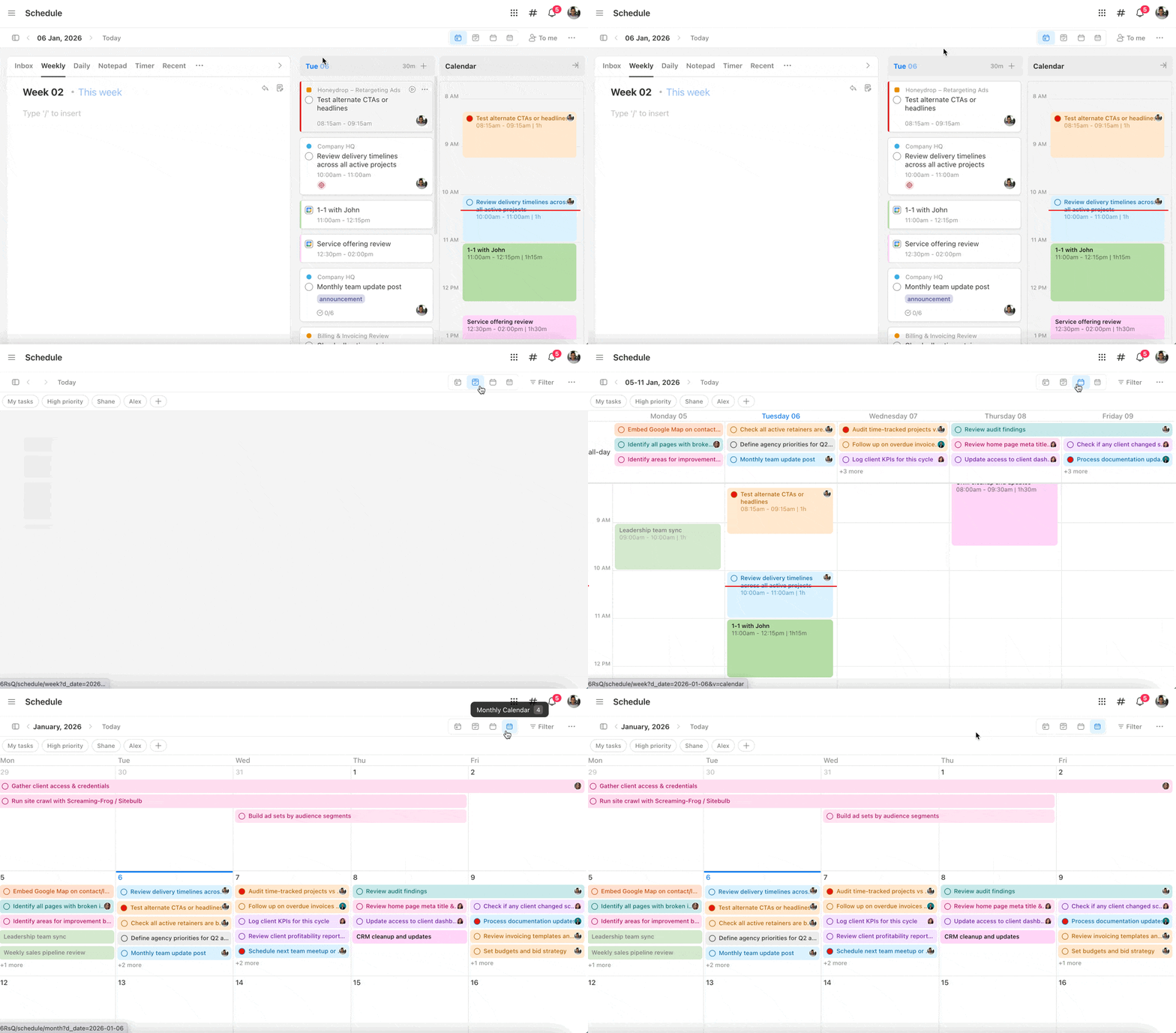
Upbase offers 4 schedule views, each designed for a different planning level:
- Daily Planner – Plan and manage your day
- Weekly Planner – See tasks grouped by day
- Weekly Calendar – Time-block tasks on a calendar
- Monthly Calendar – High-level view of the month
Pro tip: From anywhere in Upbase, press 1, 2, 3, or 4 on your keyboard to switch between these views instantly.
What appears in Schedule views
Across all Schedule views, you’ll see:
- Tasks and subtasks with a due date
- Tasks from all projects
- Tasks assigned to you or your teammates
- Your private tasks (tasks you create that aren’t added to any project)
This makes it easy to understand both your workload and your team’s schedule at a glance.
Note: In the Daily Planner view, only tasks created by you or assigned to you are shown. Tasks created by others and not assigned to you won’t appear, helping you stay focused on your own work.
Google Calendar integration
When you connect Google Calendar, your calendar events appear alongside tasks in Schedule views.
👉 Learn more: Google Calendar Integration
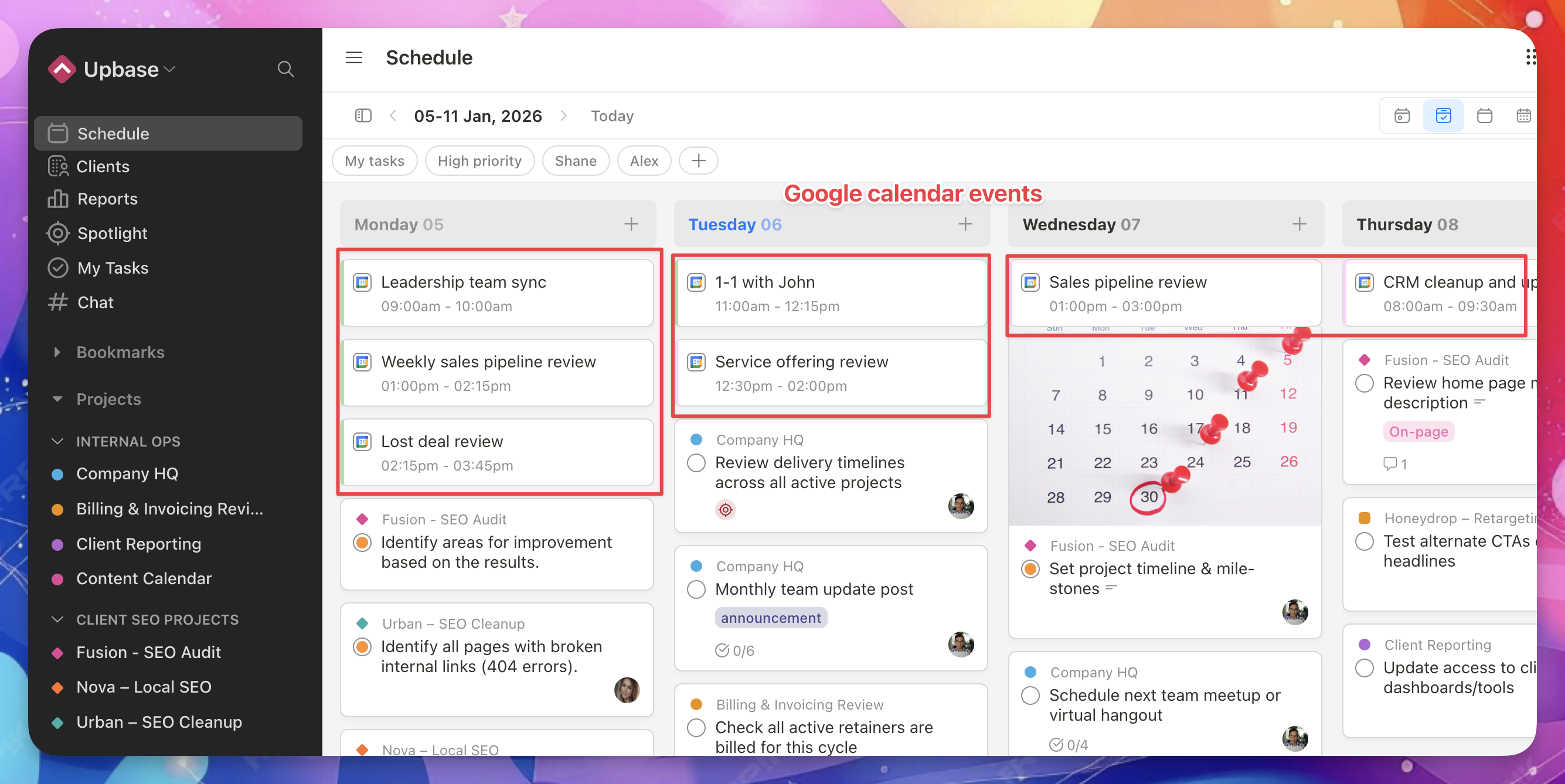
You can:
- Choose which Google Calendars to show
- Show or hide events from specific calendars
- Hide past events to reduce clutter
This helps you plan work around meetings and real availability.

Show or hide recurring task instances
If you use recurring tasks, Schedule views can become busy over time.
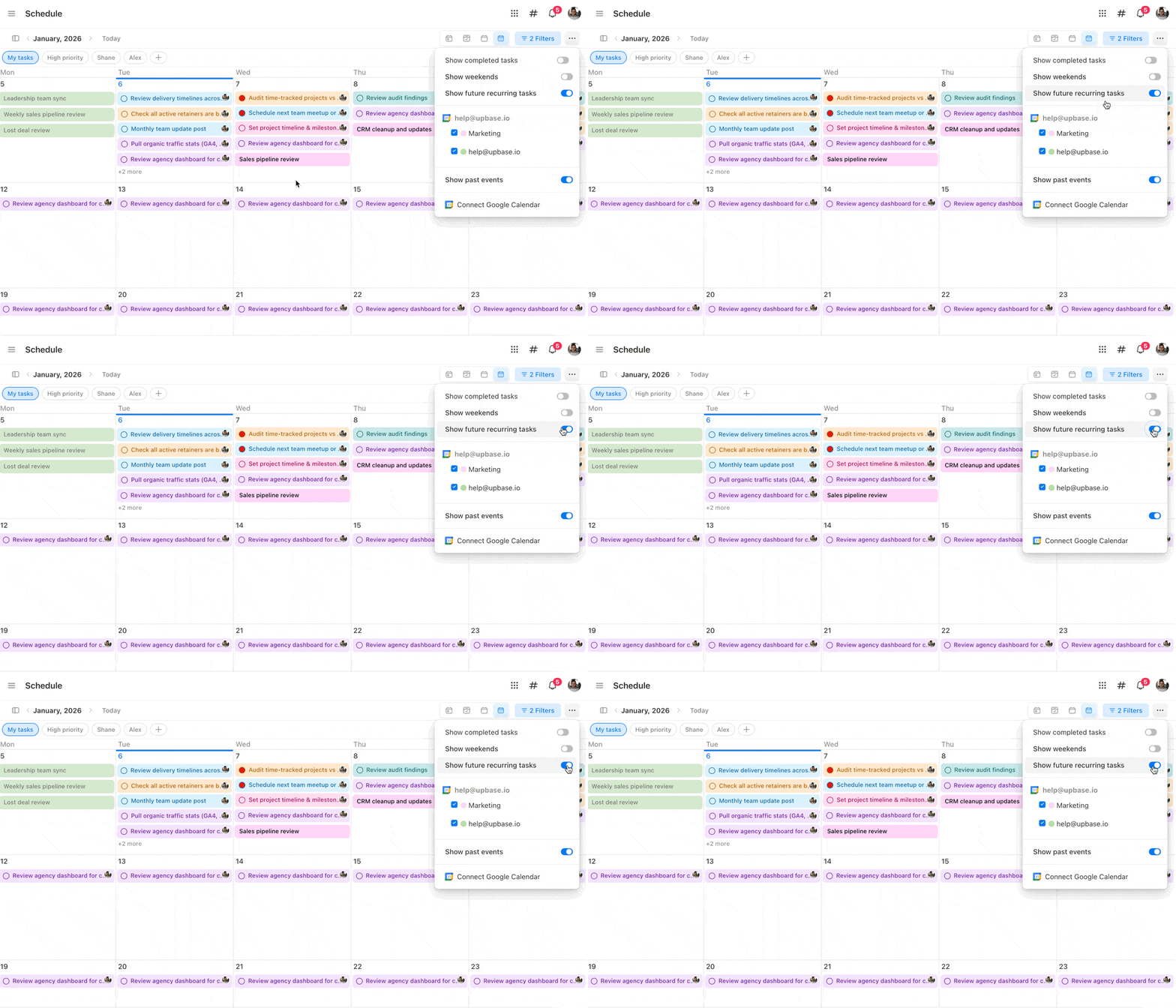
To keep your schedule clean, you can show or hide future recurring task instances.
- Turn this on to see upcoming instances of recurring tasks
- Turn it off to hide them and avoid clutter
You can toggle this option from the view settings in the top-right corner of Schedule.
Detach a recurring task instance
Sometimes, one instance of a recurring task needs special treatment.
You can detach a recurring task instance to turn it into an independent, stand-alone task.
To detach an instance:
- Open a recurring task instance
- Click Detach instance next to the due date

Once detached:
- The task is no longer linked to the recurring series
- Changes won’t affect other instances
- You can edit it like a normal, one-off task
This is useful when a single occurrence needs different timing, scope, or details.
Daily Planner: your personal planning space
The Daily Planner is dedicated to your work.
By default, it only shows:
- Tasks created by you
- Tasks assigned to you
To focus even more:
- Click To me in the top bar to hide tasks assigned to others
This keeps your daily view clean and distraction-free.

Time-based tasks always stay on top
In the Daily Planner and Weekly Planner:
- Tasks and Google Calendar events with a start time are always shown at the top
- Items are automatically sorted by time
This makes it easy to follow your day in order.

Personal planning tools (Daily Planner only)
The Daily Planner includes extra tools to support your daily work:
- Daily Notes
- Weekly Notes
- Notepad
- Inbox (tasks without a project)
- Recently viewed
- Pomodoro Timer
You can show or hide these sections to match how you work.
Daily Notes, Weekly Notes, and Notepad are private to you.

Reusable planning templates
In the Daily Planner and Weekly Planner:
- Type '/' (slash) or '::' (colon colon)
- Choose Template
This lets you reuse templates for daily or weekly planning routines.

Pro tip: If you plan your day in Daily Notes, you can bulk add tasks by copying your list and pasting it into the Add task field in the Tasks column.
Learn more: Add multiple tasks

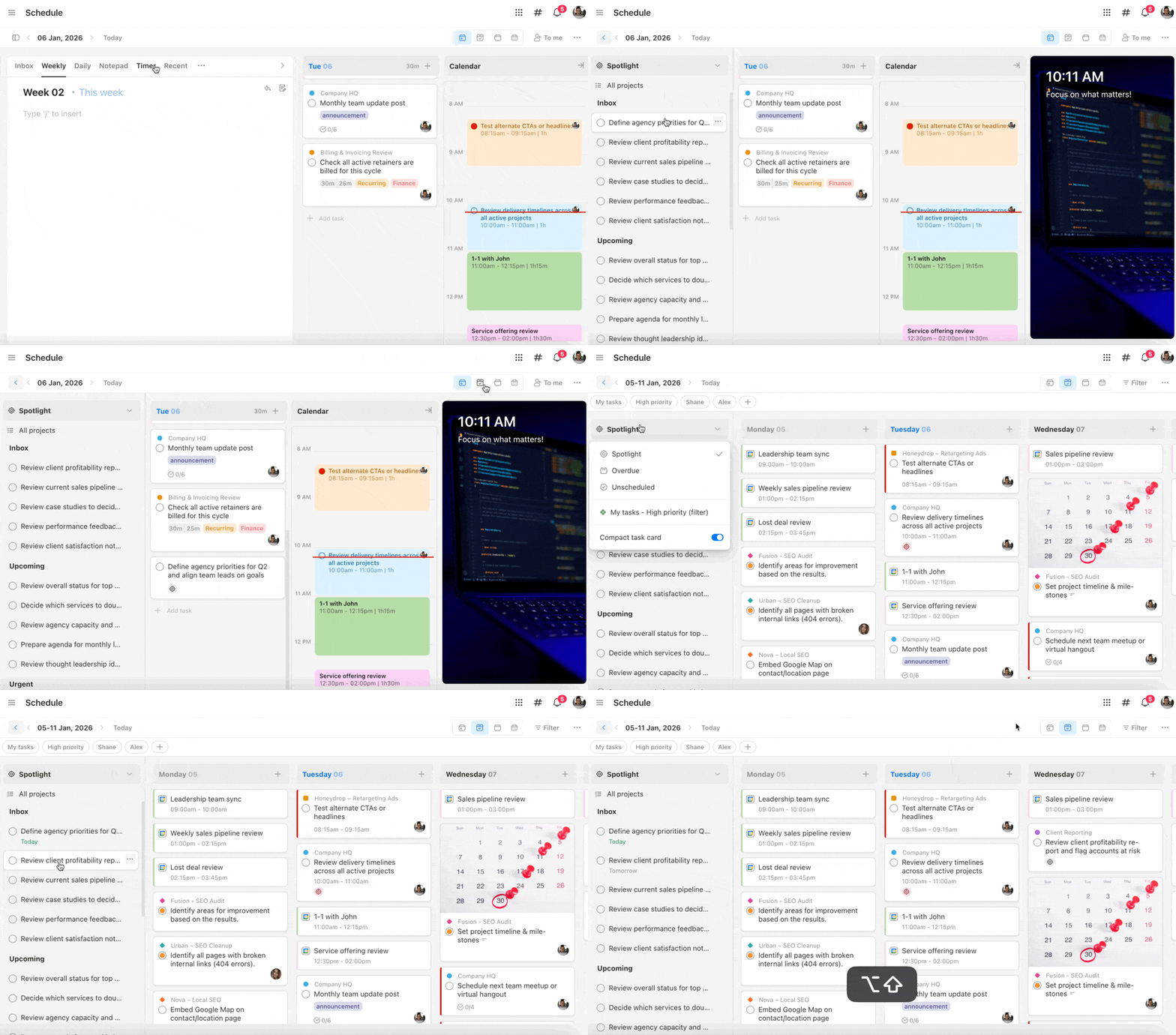
Time blocking with drag and drop
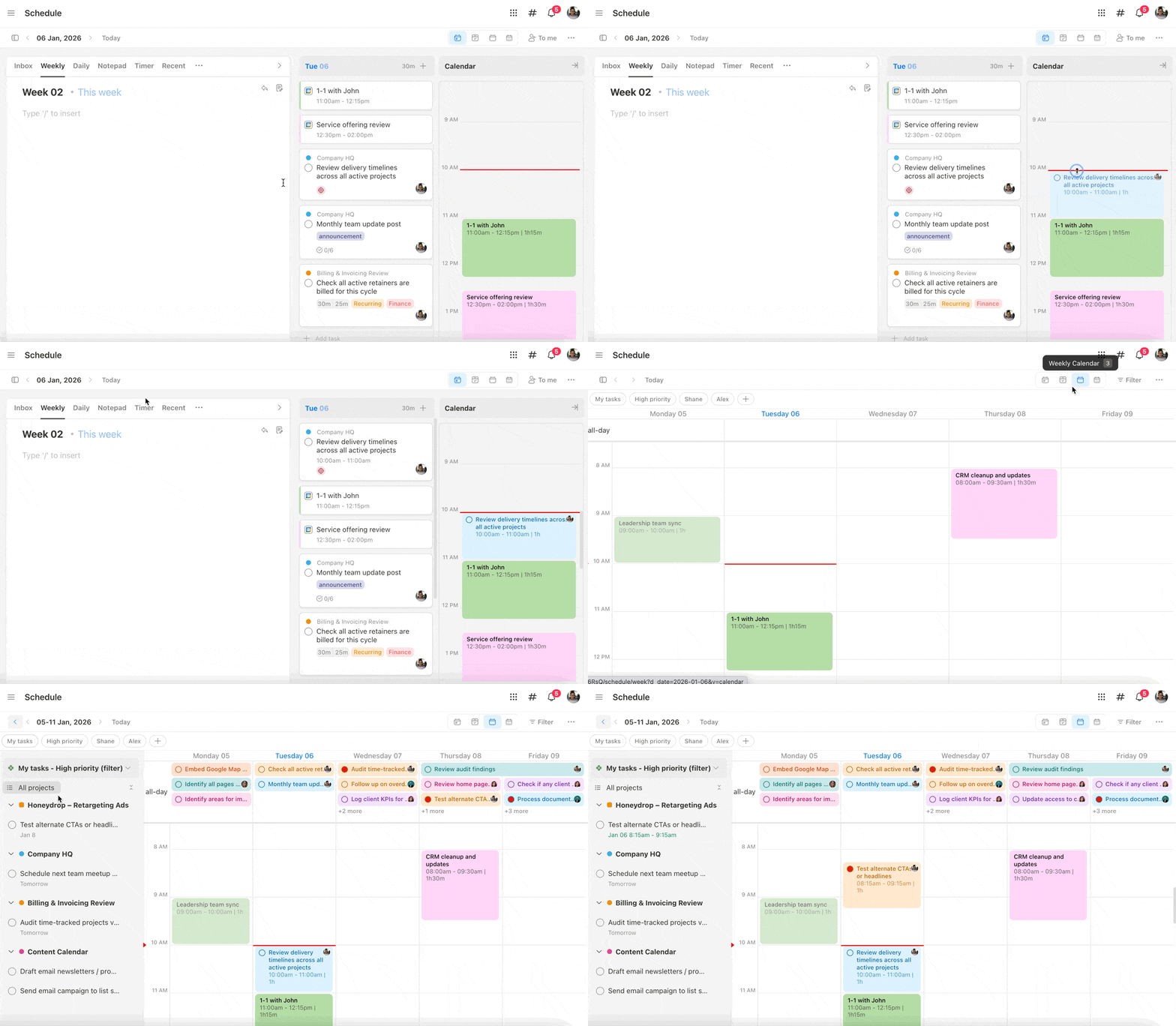
Upbase supports timeboxing to help you plan realistically.
In the Daily Planner and Weekly Calendar:
- Drag a task from the task list
- Drop it onto the calendar
The task will be scheduled for that time block.
Tasks spanning multiple days
If a task has both a start date and a due date, here’s how it appears across Schedule views:
- Daily Planner: The task appears on every day it spans
- Weekly Planner: The task appears on its due date
- Weekly Calendar & Monthly Calendar: The task appears across its full date range
This ensures long-running tasks are always visible and easy to track, no matter which view you’re using.
Schedule tasks from anywhere
From all 4 Schedule views, you can drag tasks from:
- Spotlight
- Unscheduled
- Overdue
- Global Filters
Drop them onto a day to instantly set a due date.
Pro Tip: Press 'S' to open the Scheduling sidebar quickly.
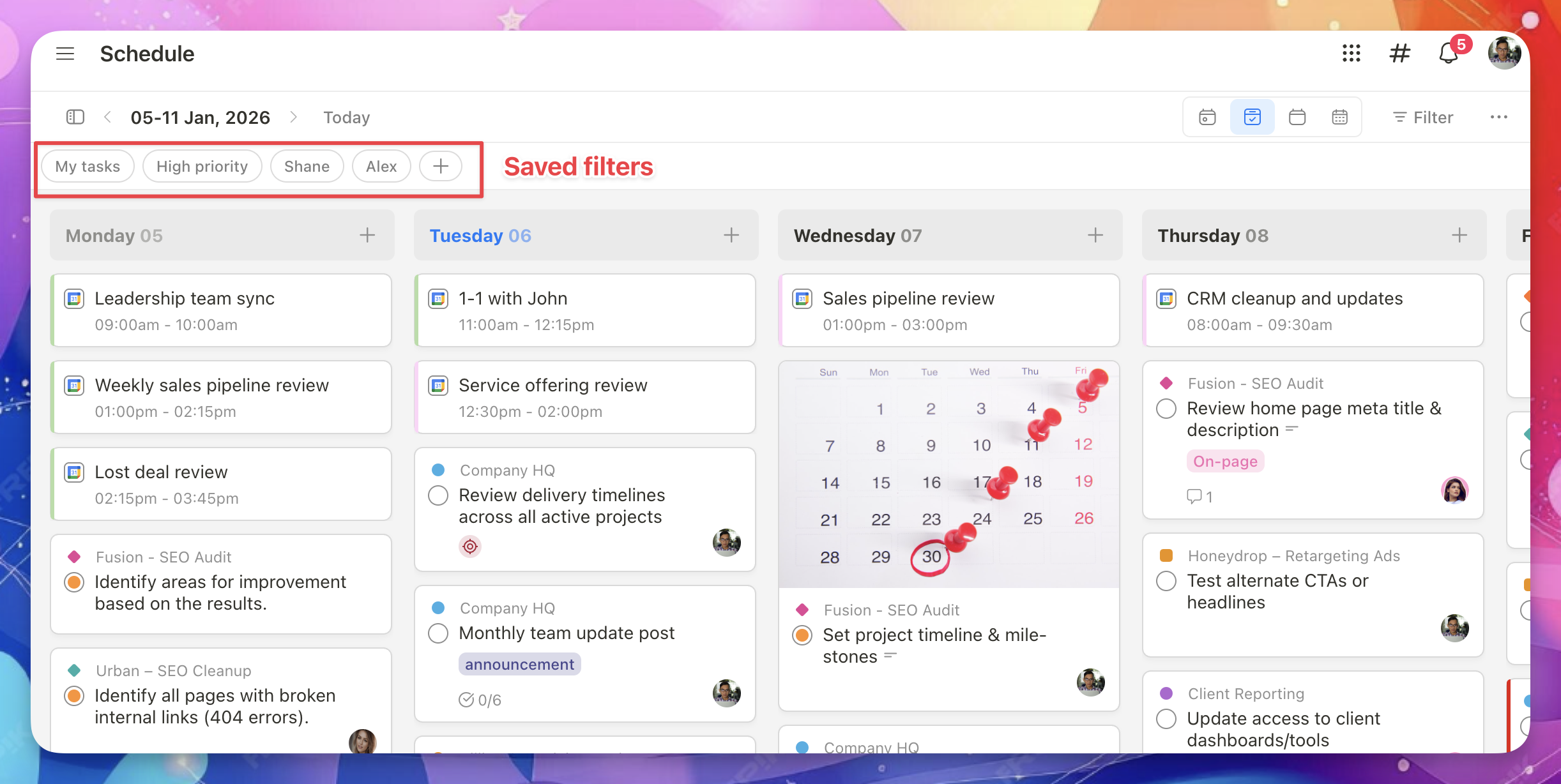
Saved filters for focused planning
In Weekly Planner, Weekly Calendar, and Monthly Calendar, you can create Saved Filters to show only what matters.
Examples:
-
My tasks (Assigned to me + My private tasks): created by you and assigned to you (or no assignee)

- Tasks assigned to a specific teammate
- Tasks by category (Product, Marketing, Sales, etc.)
- Tasks by tag or priority
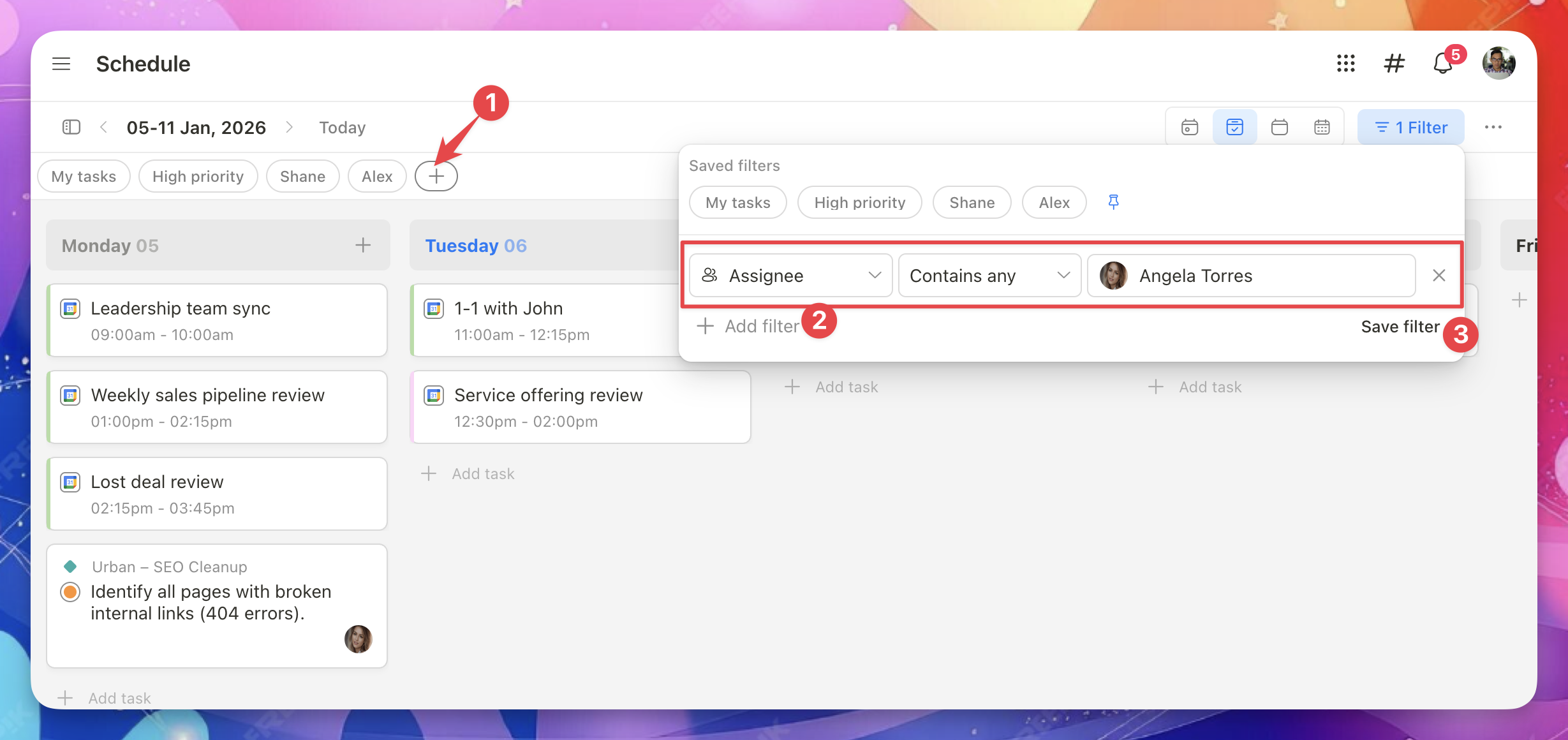
Create a saved filter
- Click the Plus (+) icon in the top bar
- Add your filter conditions
- Click Save filter
Your saved filters appear at the top for quick access.
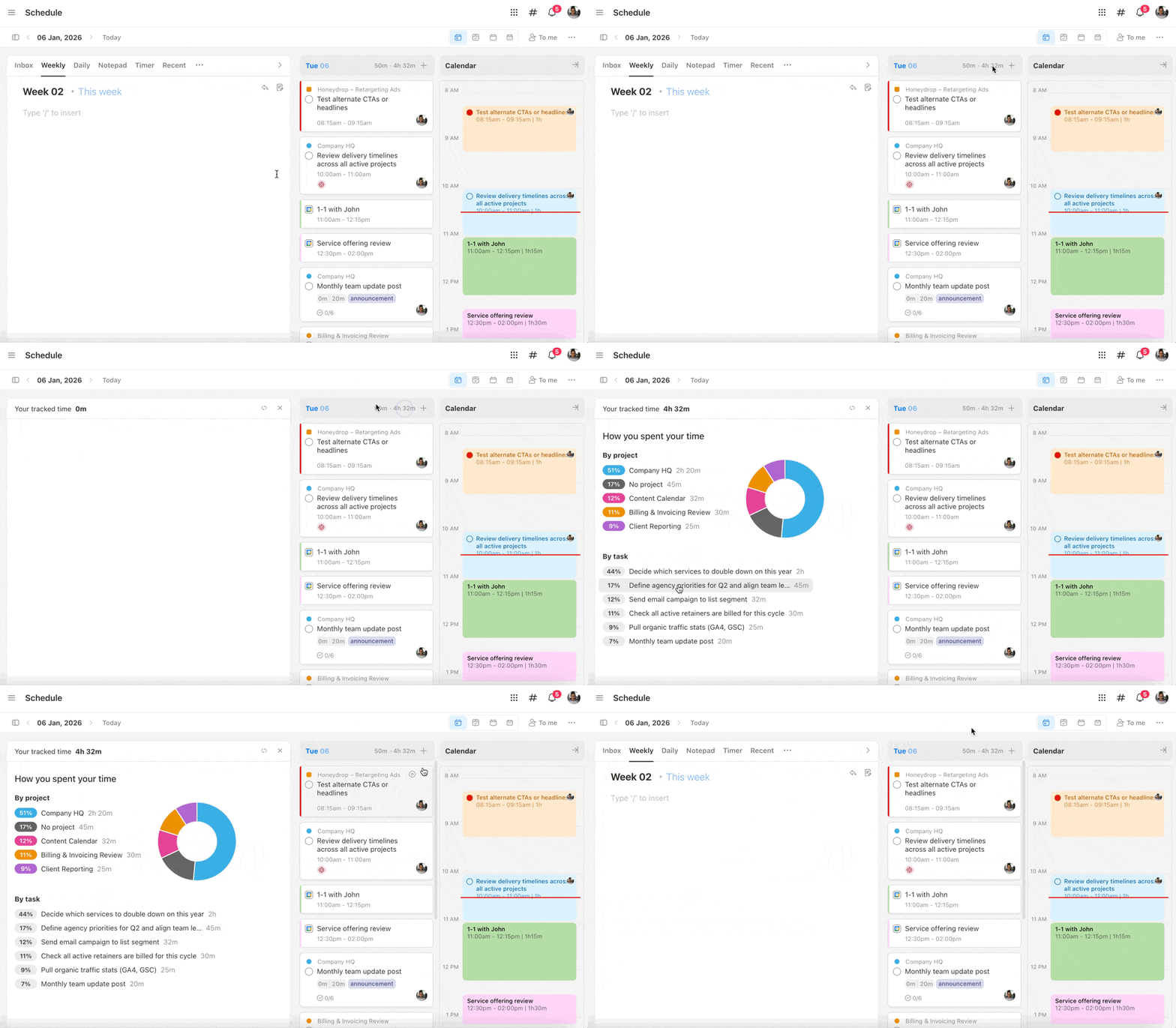
Track your actual time (Daily Planner)
In the Daily Planner, you can click the Total actual time for the day.
This helps you:
- Review how you actually spent your time
- Compare planned work vs. real work
Task Panel for important tasks
In the Daily Planner:
- Click the right arrow at the top-right of the Personal Planning section
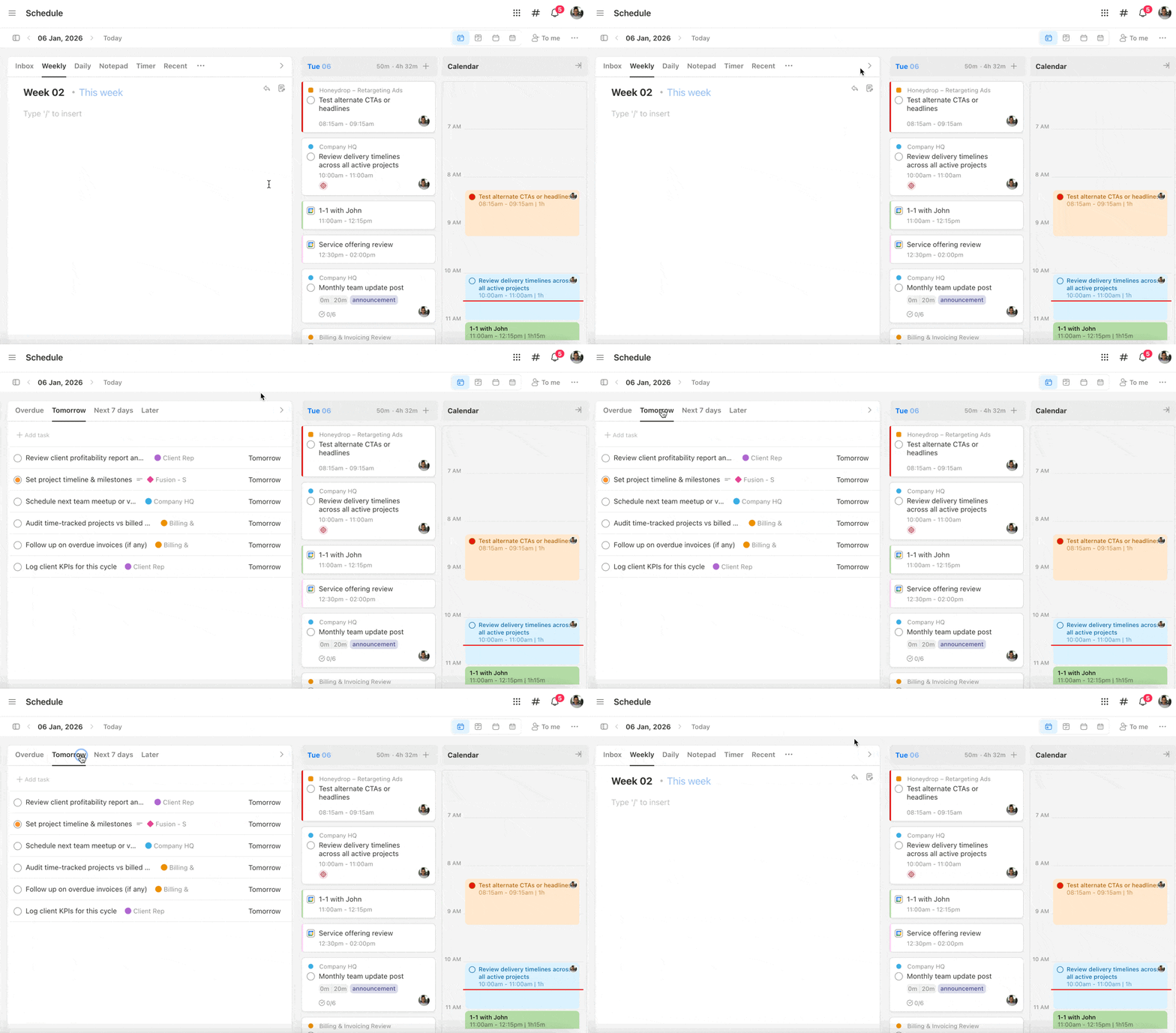
This opens the Task Panel, showing:
- Overdue tasks
- Tomorrow
- Next 7 days
- Later
Perfect for quick prioritization.
View all daily/weekly notes
In the Daily Planner:
- Click the icon at the top-right of Daily / Weekly Notes
You’ll see all your daily/weekly notes in one place for easy review.

Plan your day with confidence
With Schedule views, Daily Planner tools, and calendar integration, Upbase helps you move from tracking tasks to planning your time — every day.