.png)
Add multiple tasks at once (bulk add)
You can quickly create several tasks or subtasks at the same time by pasting multiple lines into the task field. This is helpful when you already have a list written elsewhere (for example, in Notes or another app).
- Available only in Board view (including Daily Planner and Weekly Planner views)
- Not supported in List view
- One line = one task or subtask
- Empty lines are ignored
What is bulk adding?
Bulk adding lets you turn multiple lines of text into separate items in one step.
- Each line becomes its own task, or
- Each line becomes its own subtask (when added inside a task)
How to add tasks in bulk
- Go to Board view.
- Click Add task.
- Paste a list of items into the task field, with one task per line.
- Upbase will detect multiple lines.
- Confirm to create separate tasks.
Each line will be added as an individual task on the board.
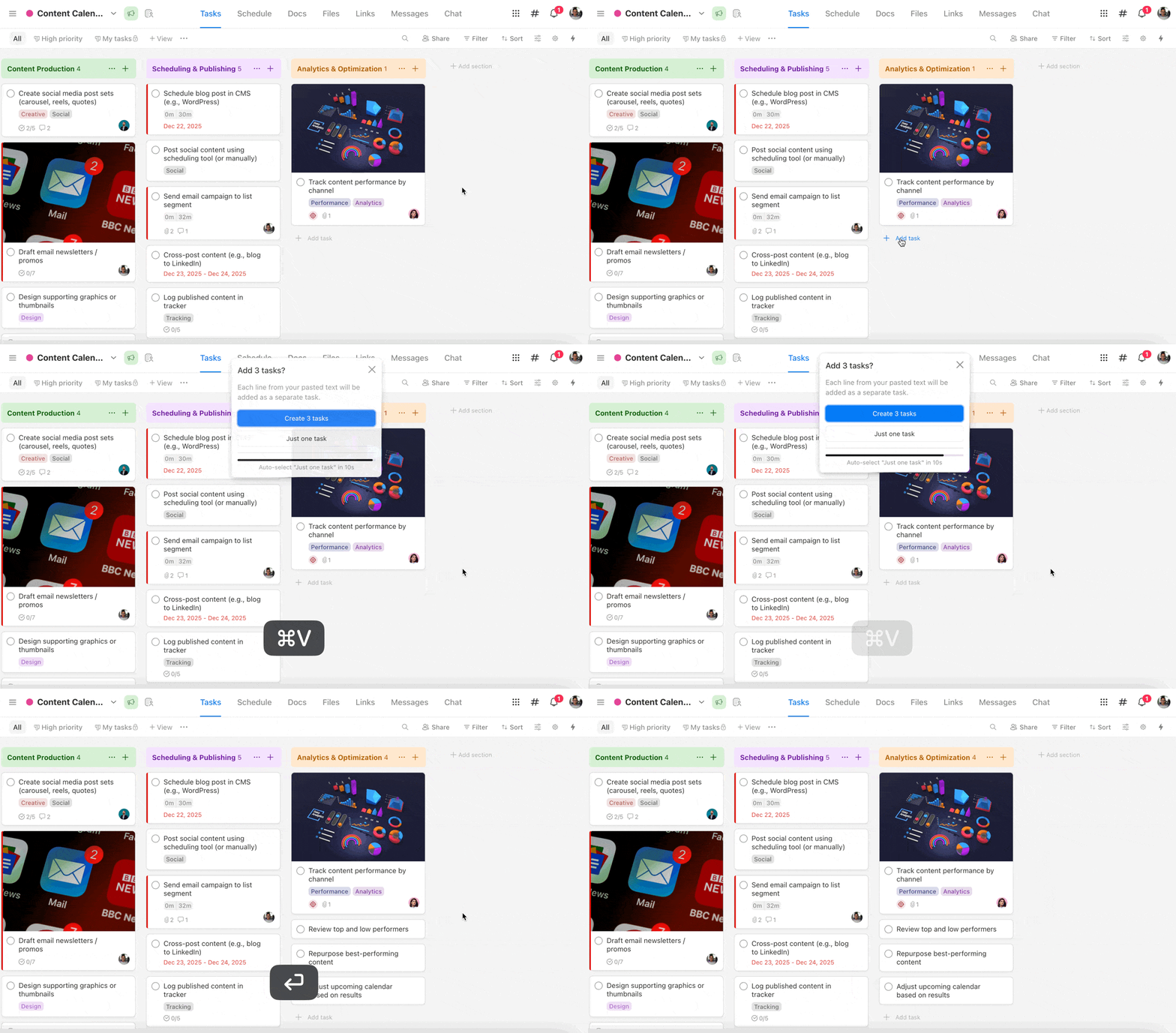
This is especially useful if you plan your day in Daily Notes and then want to quickly turn those notes into tasks in the Tasks column.

How to add subtasks in bulk
- Open a task.
- Click Add subtask.
- Paste multiple lines into the subtask field.
- Confirm to create one subtask per line.
Each line will become a separate subtask under the same parent task.

When to use bulk add
- Importing tasks from another app
- Quickly planning a project
- Turning notes into tasks or subtasks
- Brain-dumping ideas fast
Bulk adding tasks and subtasks is the fastest way to organize your work without creating items one by one.