.png)
Invite and collaborate with members in Upbase
Upbase is built for team and client collaboration. To work with others, you’ll do two things:
- Invite people to your workspace
- Add them to the projects you want to collaborate on
👉 How to add clients to a project
Step 1: Invite members to your workspace
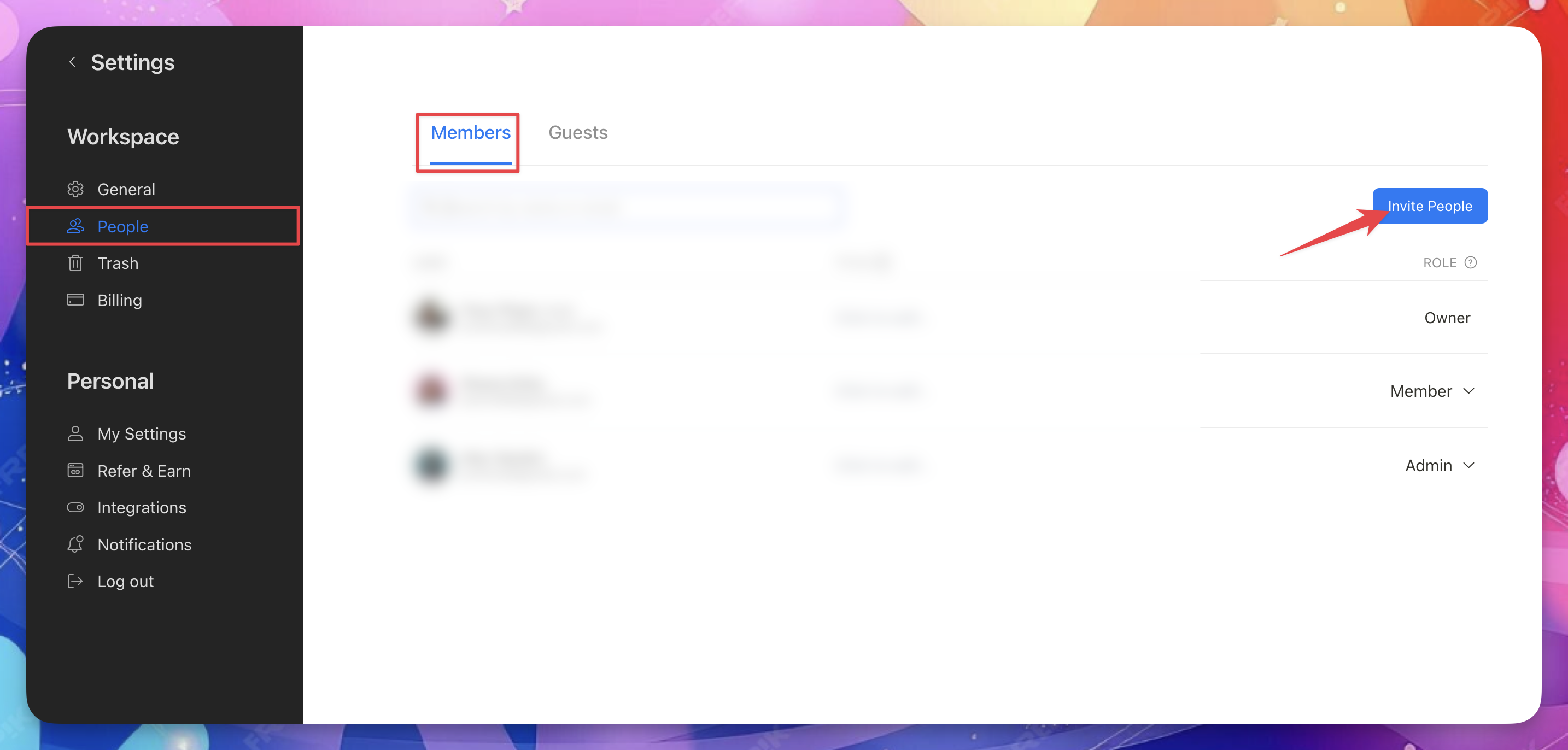
- Click Settings in the left sidebar.
- Select People.
- Click Invite people.
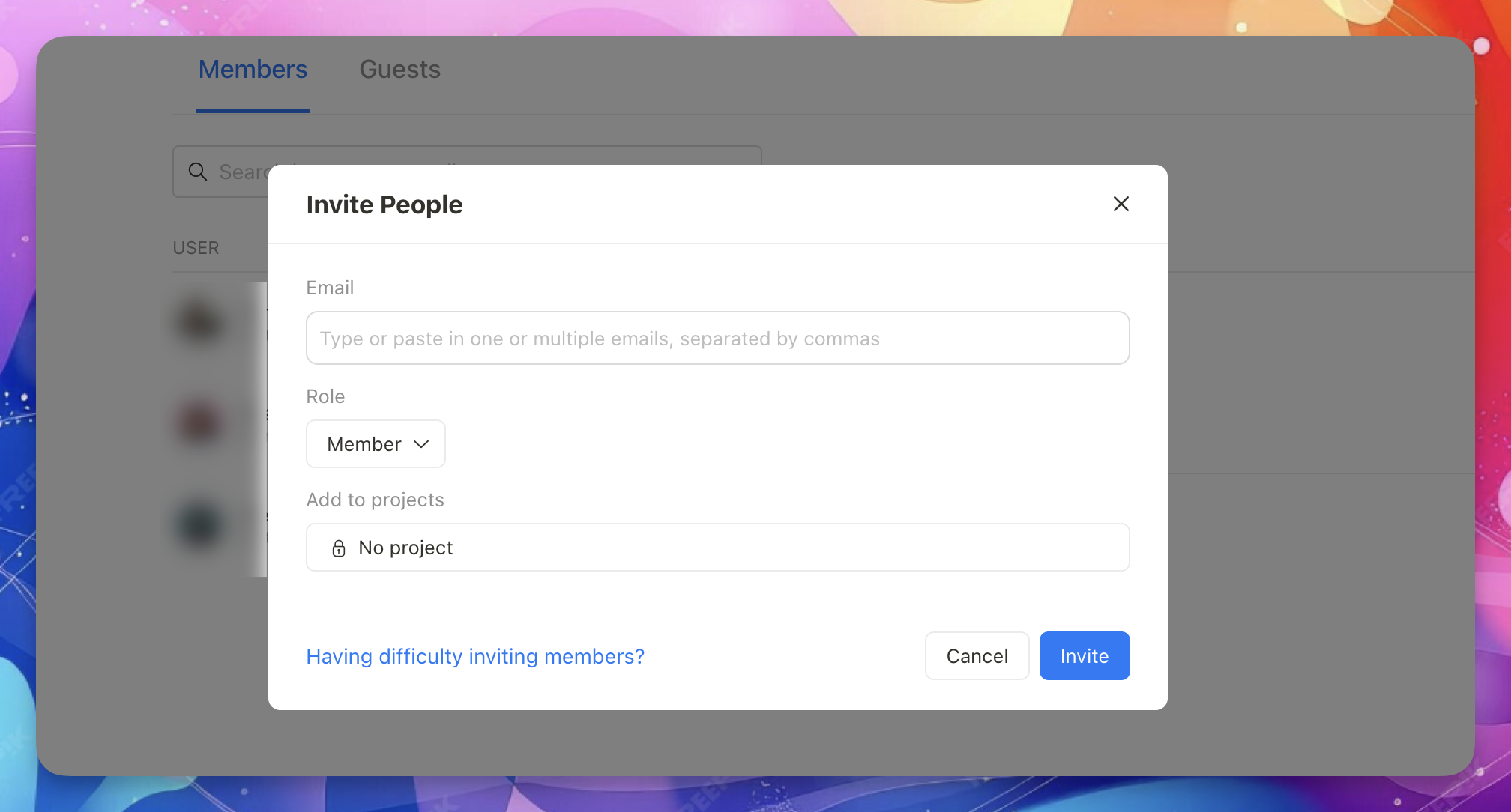
In the invite modal:
- Enter one or more email addresses (separate multiple emails with commas).
- Choose a role for each person.
- Select the projects you want to add them to (optional).
Roles explained
Admin
- Can access workspace settings
- Can invite or remove members and change roles
- Can permanently delete items in Trash
- Can delete any user’s items, including comments
Member
- Regular users with limited permissions
- Can access project settings
- Cannot access workspace settings
Related article: Workspace settings - People and Permissions
Project access during invite
When inviting someone, you can choose which projects they can access.
- If you select No project, they won’t have access to any existing projects.
- You can always add them to projects later.
Important: All projects in Upbase are private. Only members who are explicitly added can see them.
Step 2: Add members to a project
If you didn’t share projects during the invite—or want to add members later—you’ll need to add them to each project manually.
To add members to a project:
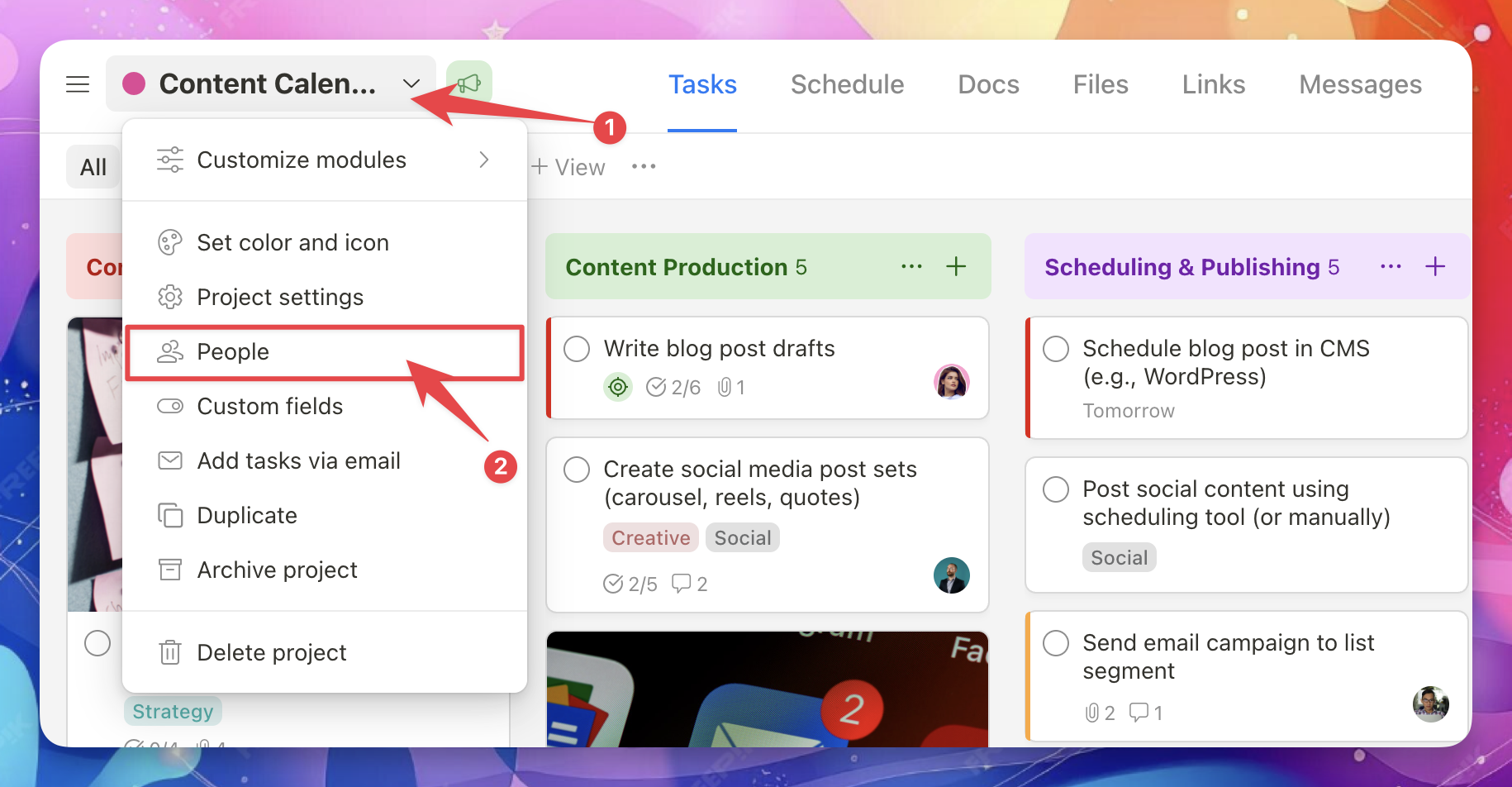
- Open the project.
- Click the project name in the top bar.
- Select People and permissions.
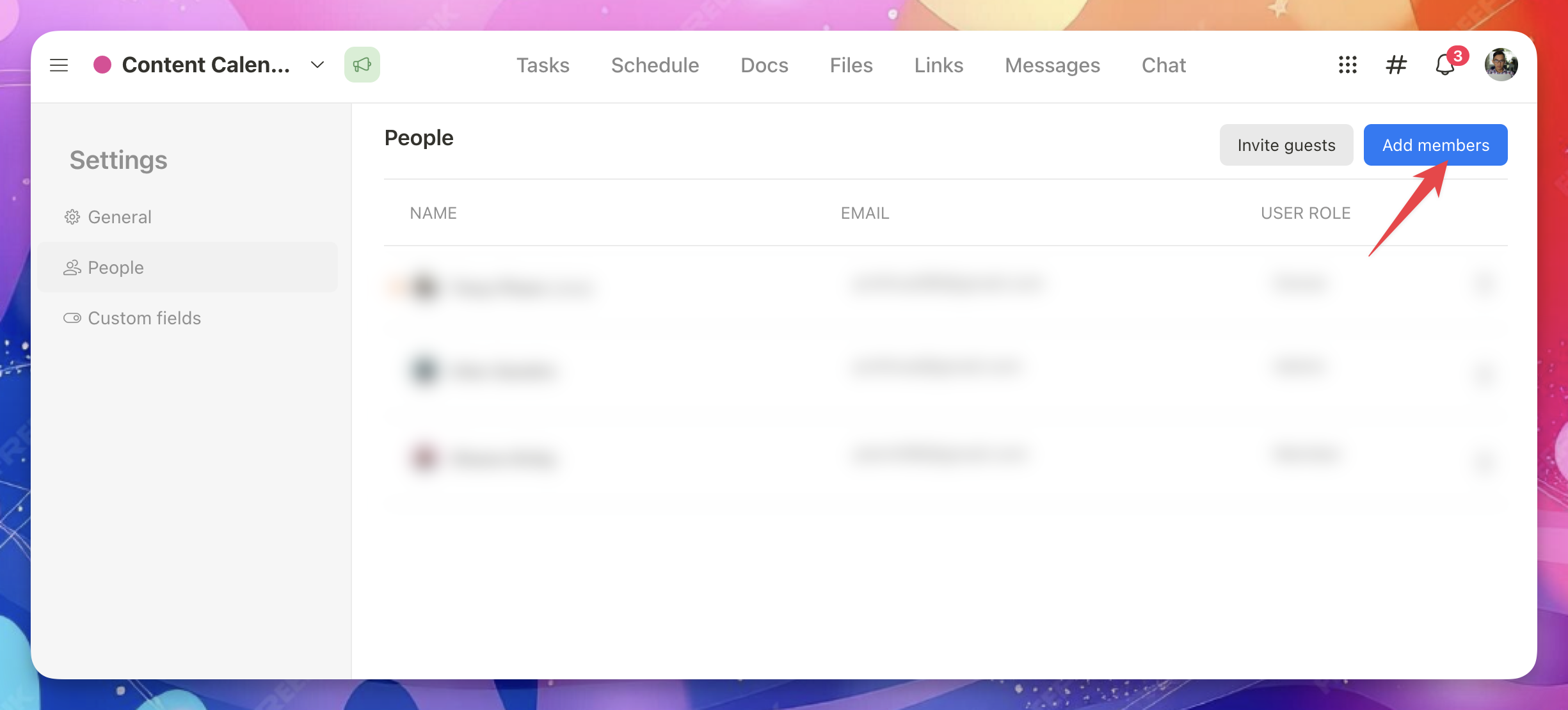
- Click Add members.
- Choose the members you want to add.
That’s it! Once added, you can collaborate together inside the project.