.png)
Publicly share a task board, doc, or file
You can make a task board, doc, or file public to share work with clients or your audience—no Upbase account required to view.
Important notes
- Guests cannot share items publicly.
- If you turn public sharing off and on again, the public link will change.
Share a task board with a public link
Step 1: Open the Share menu
- Go to your project.
- Open the Tasks tab.
- Click Share in the top-right corner.

Step 2: Generate a public link
- Open the Share public link tab.
- Turn Link share ON.
- Copy the public link.

You can also copy the embed code to embed the board on your website or in other apps.

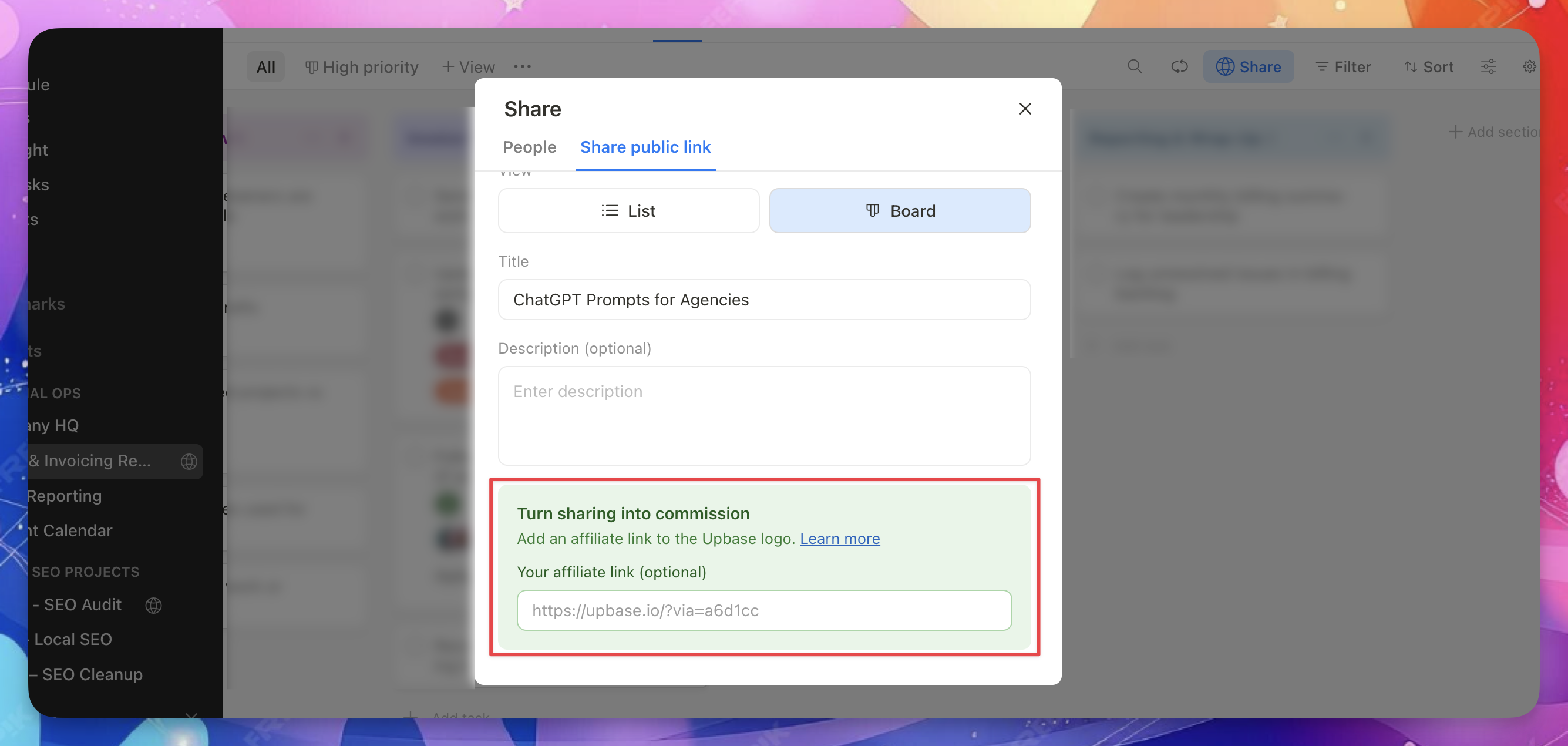
Step 3: Customize the public view (optional)
You can customize how the public board looks:
- Switch between Board view and List view
- Edit the public title and description
- Add an affiliate link to the Upbase logo
Add your affiliate link (optional)
If you’re part of the Upbase affiliate program, you can add your referral link to the Upbase logo in your public board or doc.
How it works
- When someone clicks the Upbase logo from your public page and later becomes a paying customer, you earn a 33% recurring commission.
How to add it
- Sign up for the Upbase affiliate program.
- Copy your unique referral link.
- Paste it into the Affiliate link field when setting up your public view.
👉 Learn more and get your link at: https://upbase.io/affiliate
Tip:
To confirm it’s working, hover over the “Get Upbase Free” button in your public page. You’ll see your referral ID at the end of the URL.

Update changes in the public view
If you make changes to a shared task board (for example: tasks, sections, or content updates):
- Click the Refresh button next to Share.
- This updates the public version with your latest changes.

Pro tip: If you’re sharing resources (not tasks), consider hiding the task checkbox before the title:

You can hide default and custom task fields so they don’t appear in the task details:
- Go to Project settings → Custom fields
- Turn off fields you don’t want to show

Publicly share a doc
- Open the doc.
- Click the ⋯ (ellipsis) menu in the top-right corner.
- Select Share public link.

Once shared, the doc icon will change to a globe icon, showing it’s public.

Publicly share a file
- Open the file.
- Click the ⋯ (ellipsis) menu.
- Select Share public link.
The file will now be accessible via a public link.
