.png)
Time tracking & Timesheets
Upbase’s time tracking feature helps you stay on top of your work by tracking time spent on tasks effortlessly. You can set estimated time, log time manually or use the built-in timer, and add multiple time entries for each task.
- Time tracking, including estimated and actual time, is NOT visible to guests.
- Workspace owners and admins can add, edit, and delete time entries for other users. Regular members can only add, edit, and delete their own time entries.
- Time tracked on subtasks is recorded separately from the parent task.
Time Tracker button
The Time Tracker button in the topbar lets you log time from anywhere in Upbase — no need to open a specific task or project first.
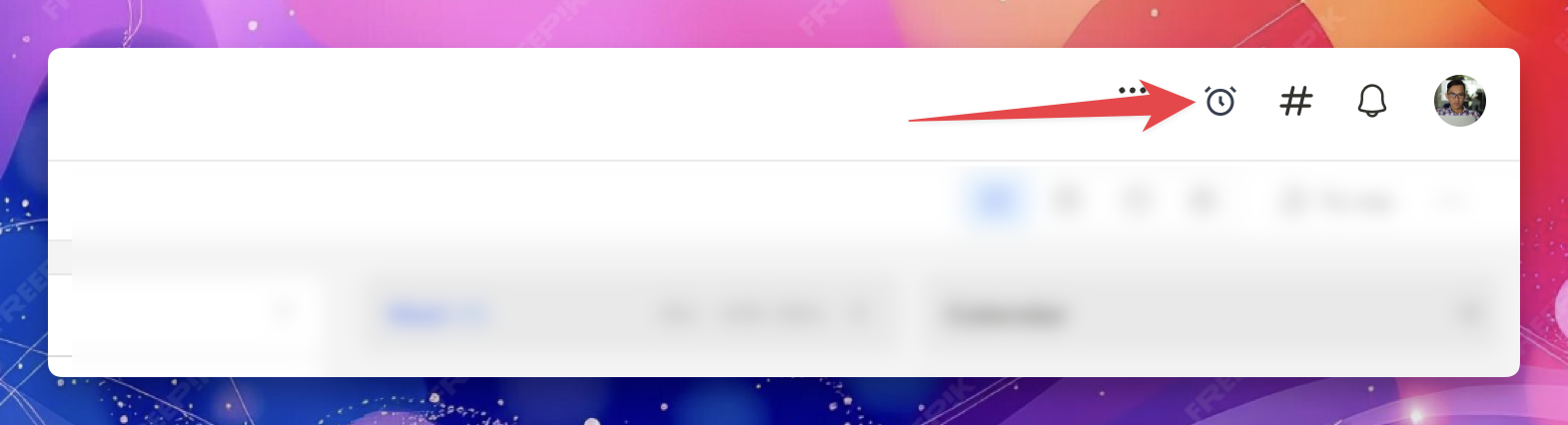
Click the clock icon in the top-right corner to open the Time Tracker panel.
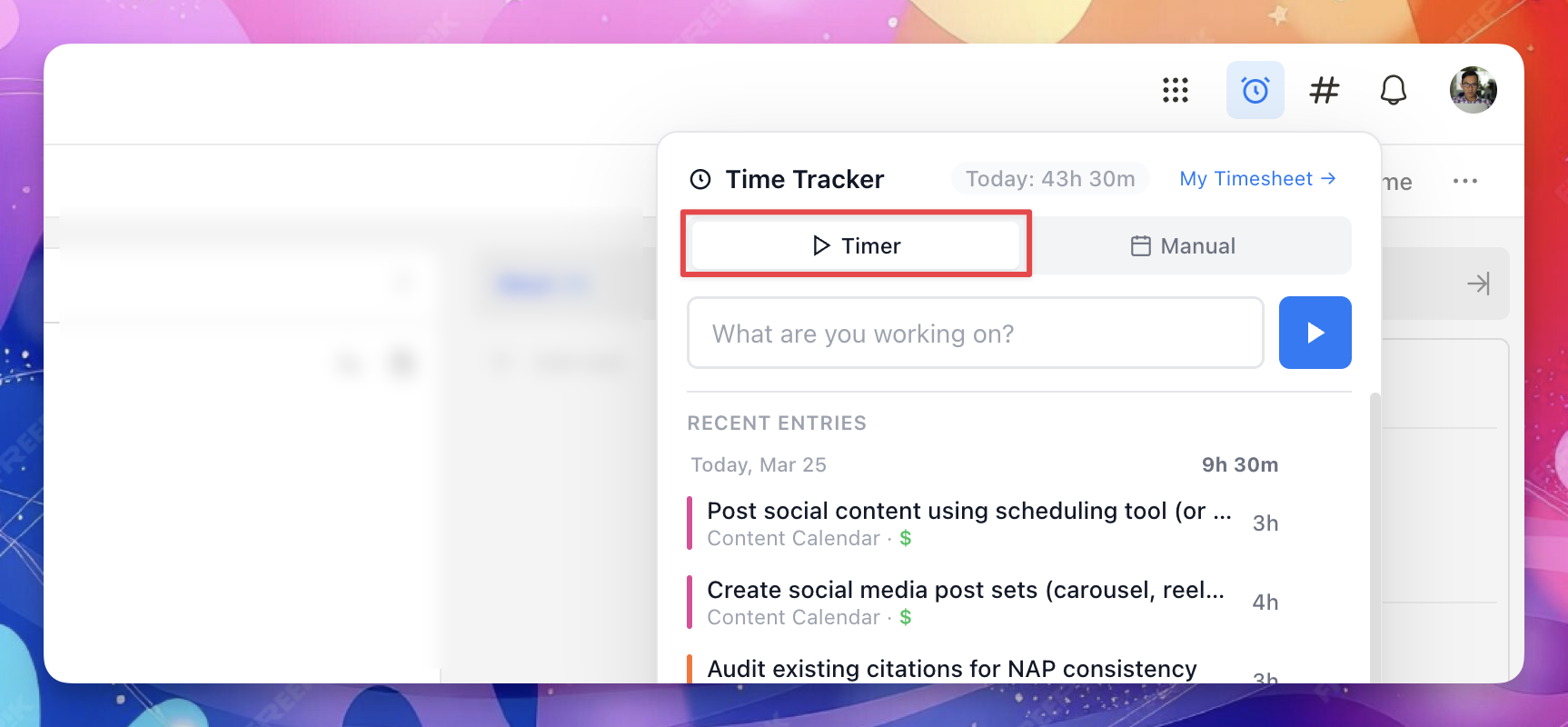
Timer mode
- Type in the search field to find a task, or select one from the list.
- Click the play button to start the timer.
- The timer runs in the background while you work.
- When you're done, click the stop button in the topbar.
- A popup appears — set the entry as Billable or Non-billable, add an optional note, then click Stop & Save.
You can also click Skip to save the entry without adding a note or changing the billable status.
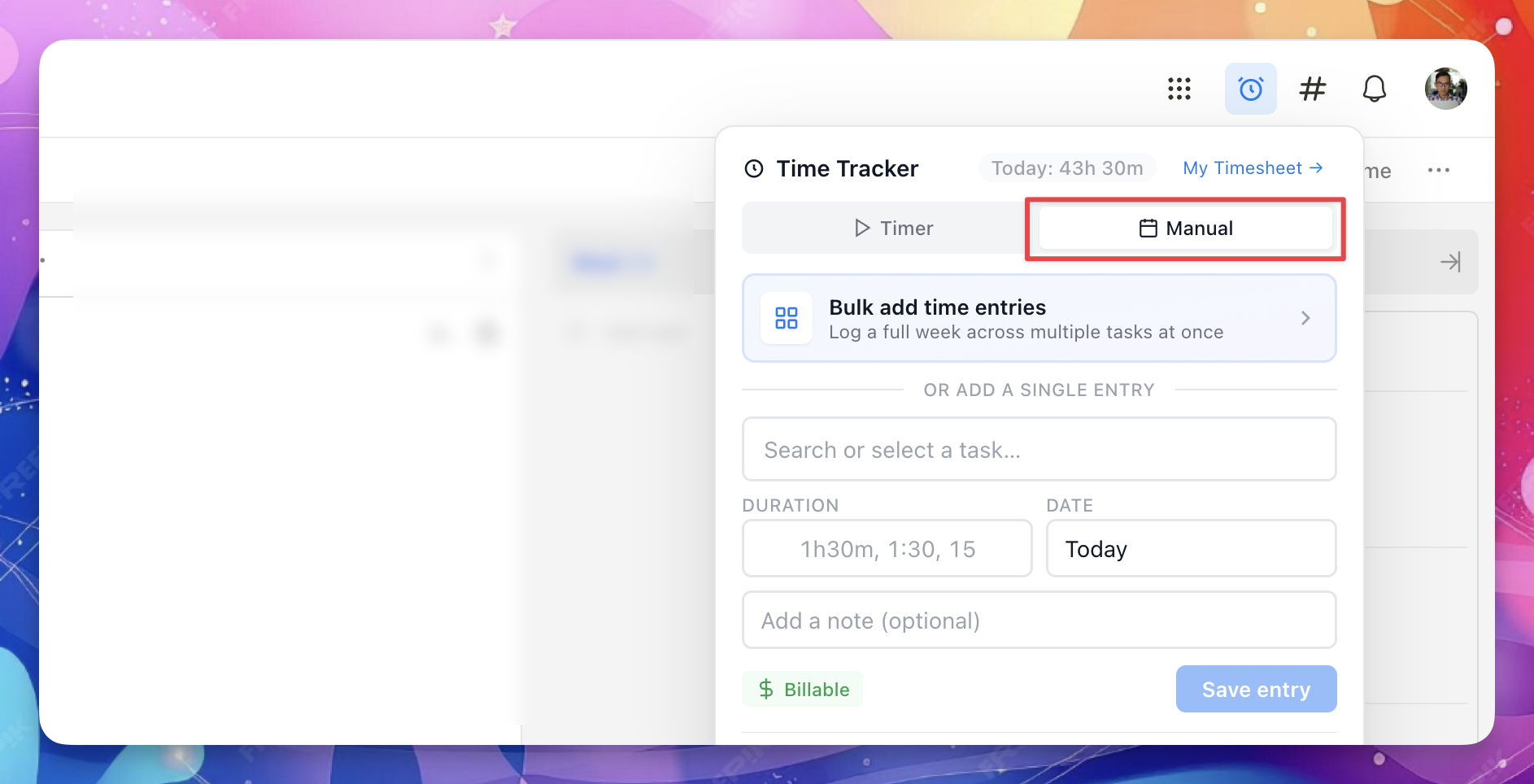
Manual mode
Use this to log time you've already worked.
- Click the Manual tab in the Time Tracker panel.
- Search for and select a task.
- Enter the duration. Supported formats: 1h30m, 1:30, 15 (minutes only).
- Set the date (defaults to today).
- Add an optional note.
- Set the entry as Billable or Non-billable.
- Click Save entry.
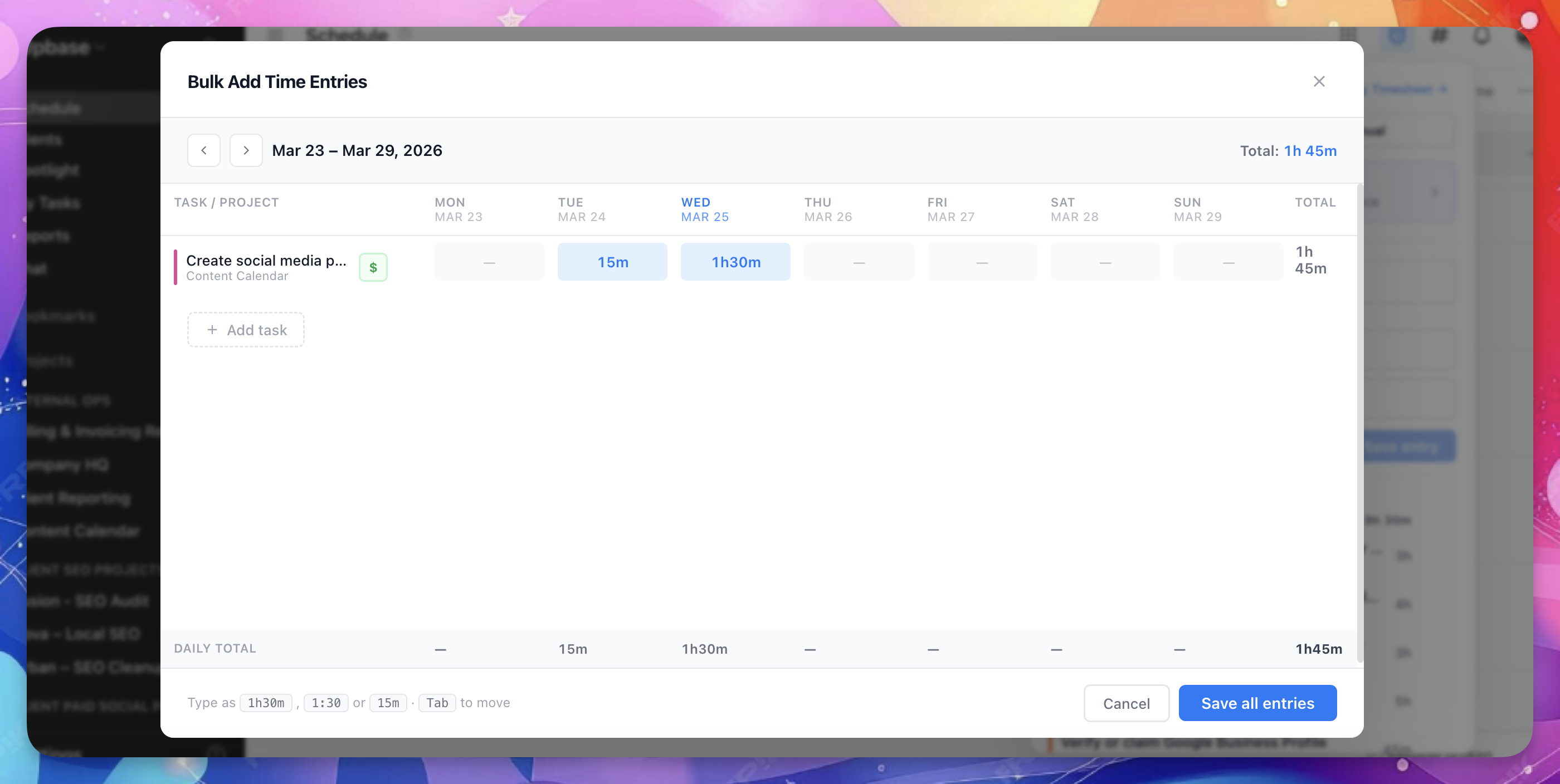
Bulk add
Use Bulk add to log a full week of time across multiple tasks at once — useful for end-of-week timesheet catch-up.
- In the Manual tab, click Bulk add time entries.
- A weekly matrix opens. Add the tasks you worked on and enter hours for each day.
- Each entry can be marked billable or non-billable individually.
- Click Save when done.
Recent entries
Both modes show your most recent time entries below the form. This gives you a quick view of what you've logged today and lets you pick up where you left off.
My Timesheet
Click My Timesheet → at the top of the panel to jump directly to your full timesheet view.
Enable/disable time tracking in a project
You can enable or disable time tracking anytime in Project settings → Custom fields:

Once enabled, you'll see a "Time" field in task detail page:
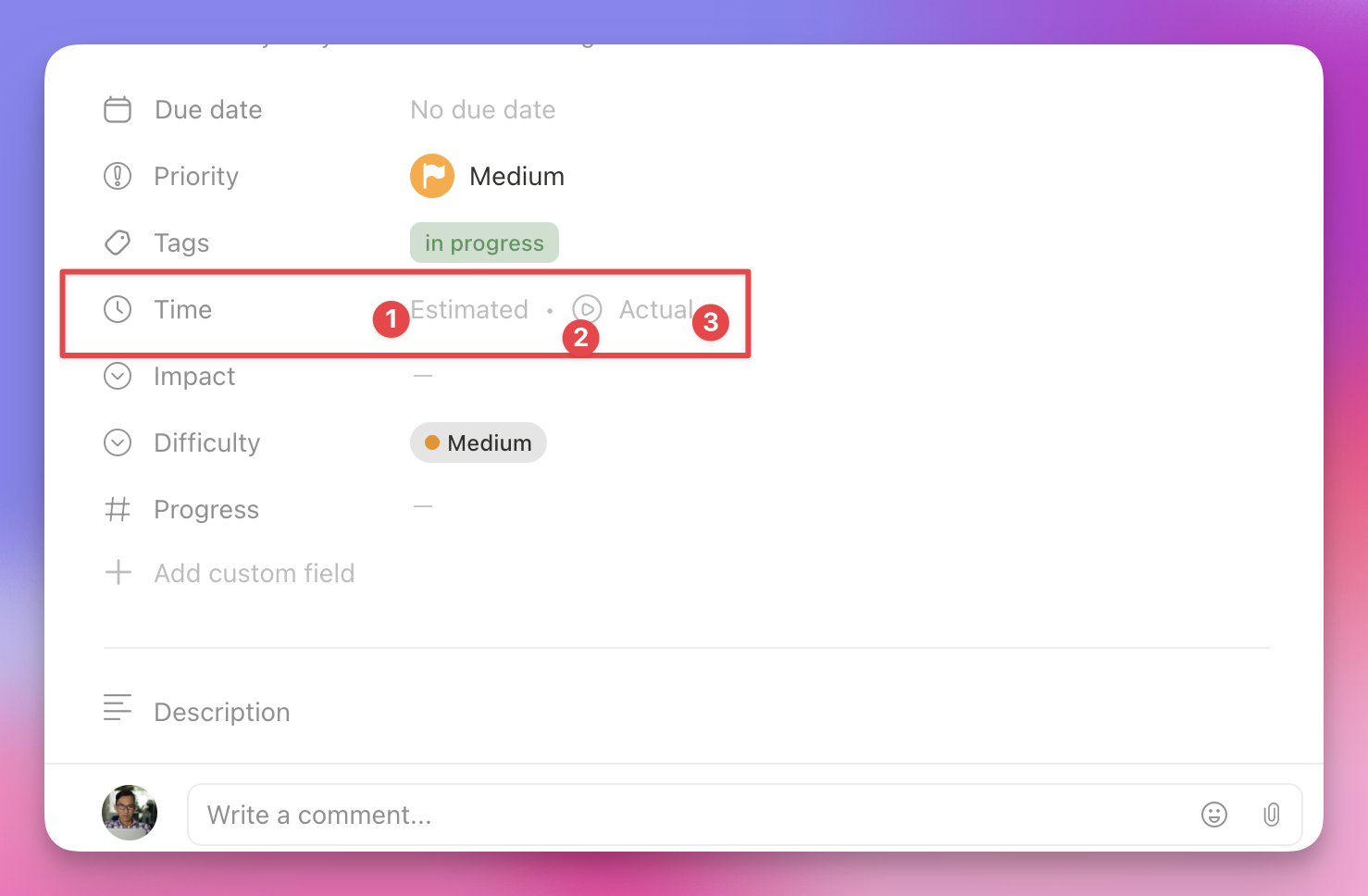
- Set estimated time
- Start Timer
- Open the Time Entry popup
You can add estimated and actual time in various time format, such as: 2h, 2h30, 2:30, 2h30m, 30m, 30.
Add time entries manually
If you forgot to run a timer when was working on your task, you can manually add time tracked later. Workspace owner and admins can add time entries for others.
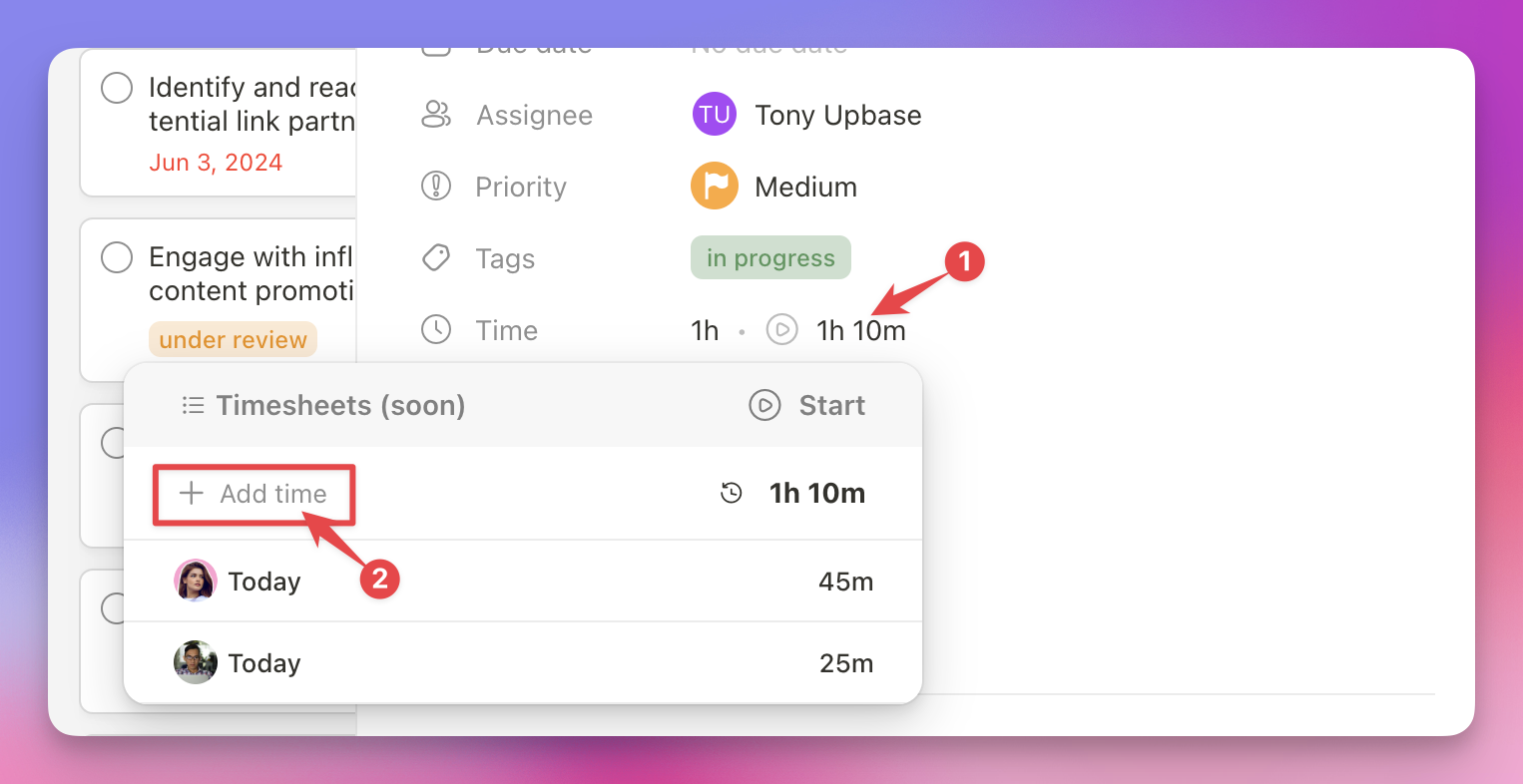
Click on the "Add time" button to add a new entry. The new entry form will appear:
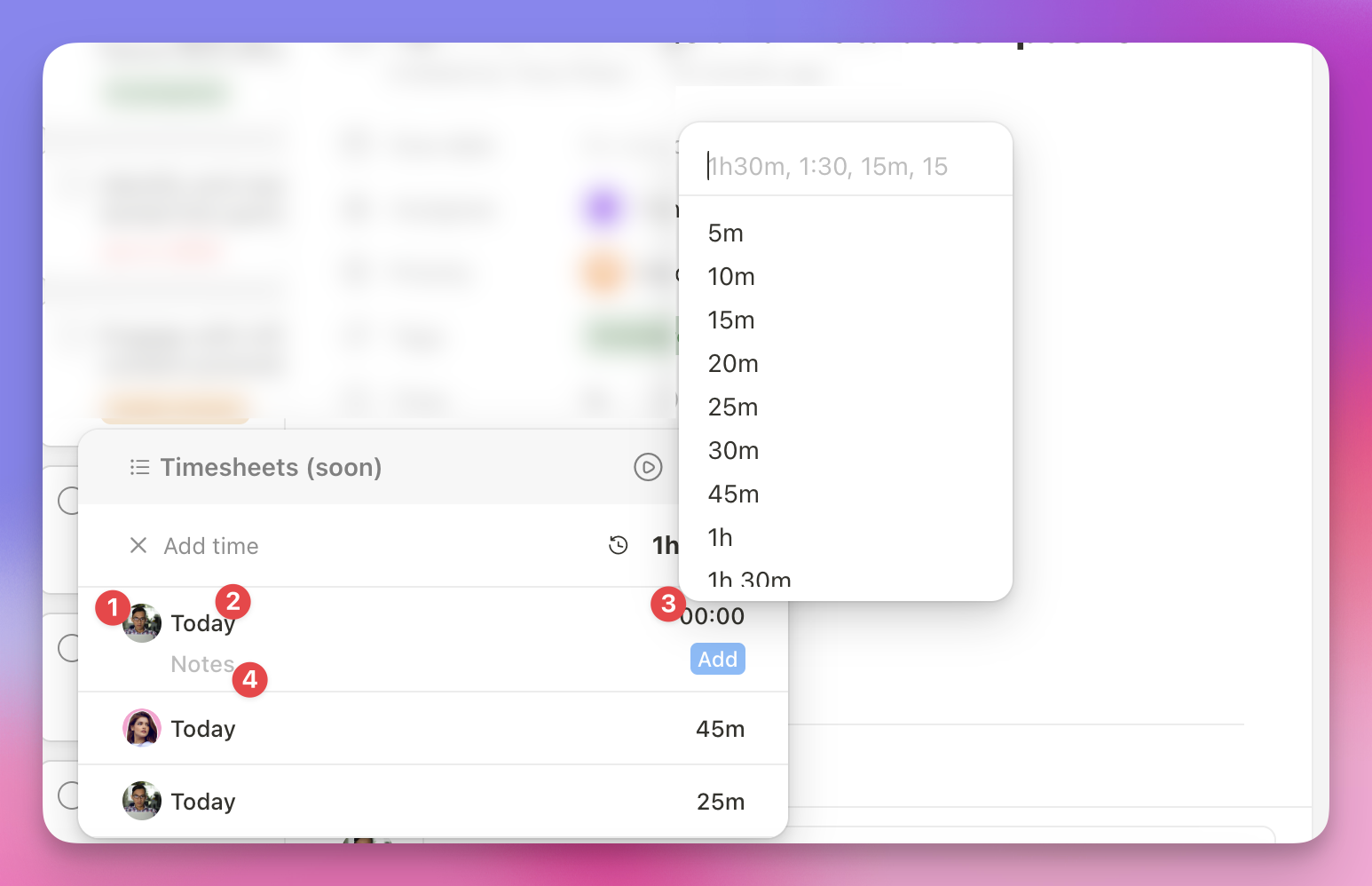
- Select a user to add time entry for.
- Select a date.
- Enter the amount of tracked time.
- Add time entry notes (optional)

Track time with Timer
Want precise tracking? Use the built-in timer to record time in real-time.

Time tracking on Daily Planner view
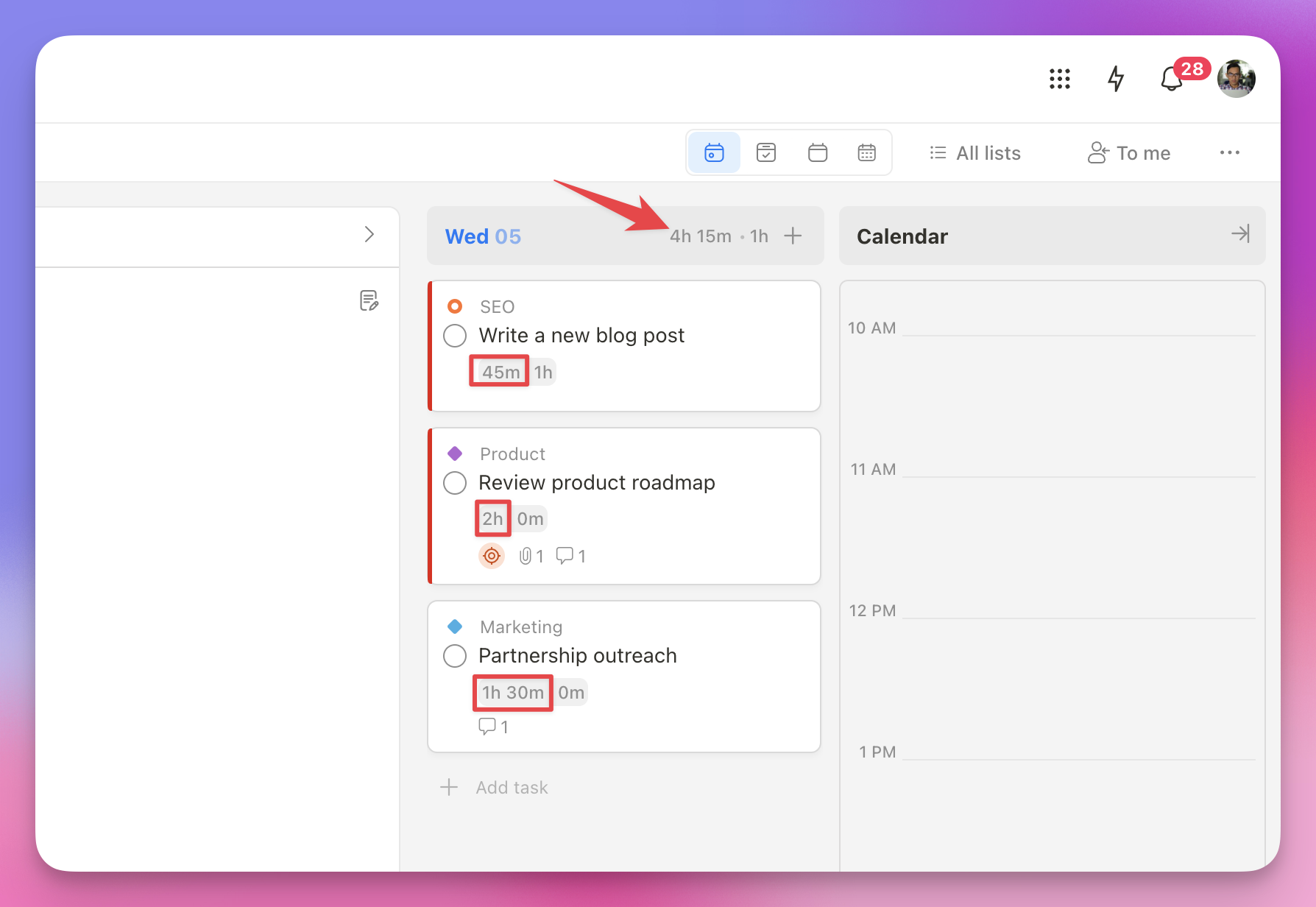
Total estimated time
As you add tasks and set time estimates, you’ll see a running total of your planned work for the day—helping you stay realistic, avoid overloading yourself, and maintain a balanced schedule:
Daily time spent statistics
Get a clear picture of how you’re spending your time with Upbase’s daily time spent statistics. This feature breaks down your tracked time by project and task, giving you valuable insights into your workflow. Easily spot where your focus goes, make informed decisions, and ensure your time is spent on what truly matters.
Click on the total tracked time for the day to view your stats.

Timesheets
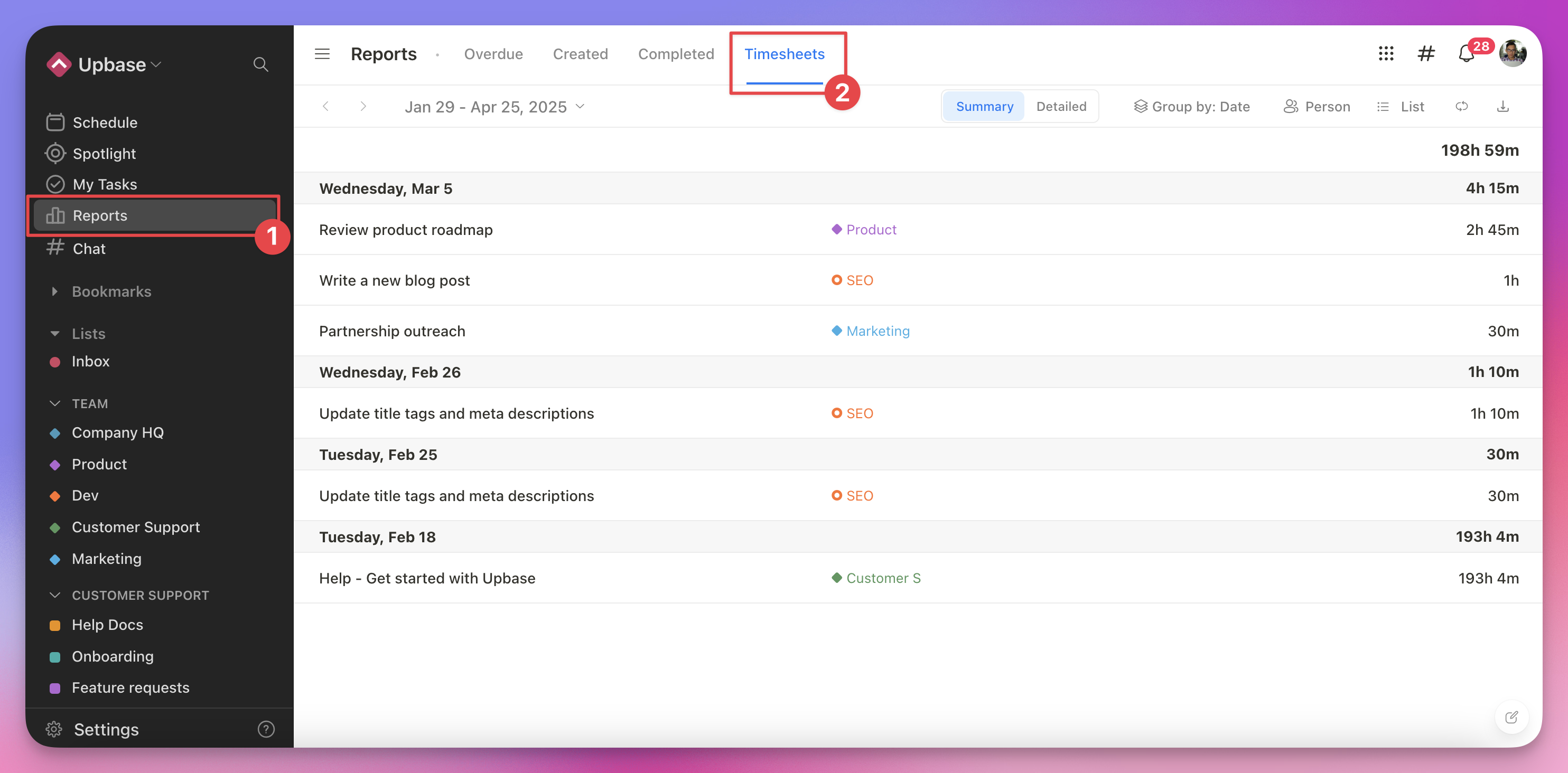
You can view and manage tracked time across all your projects for any period! With Timesheets, you can:
✅ Filter time entries by project and user.
✅ Group data by project, date, user, and more.
✅ Export timesheets to CSV for easy reporting.
Permissions:
👤 Regular members can see all their tracked time.
🔑 Workspace owners and admins can view all time entries from all users.
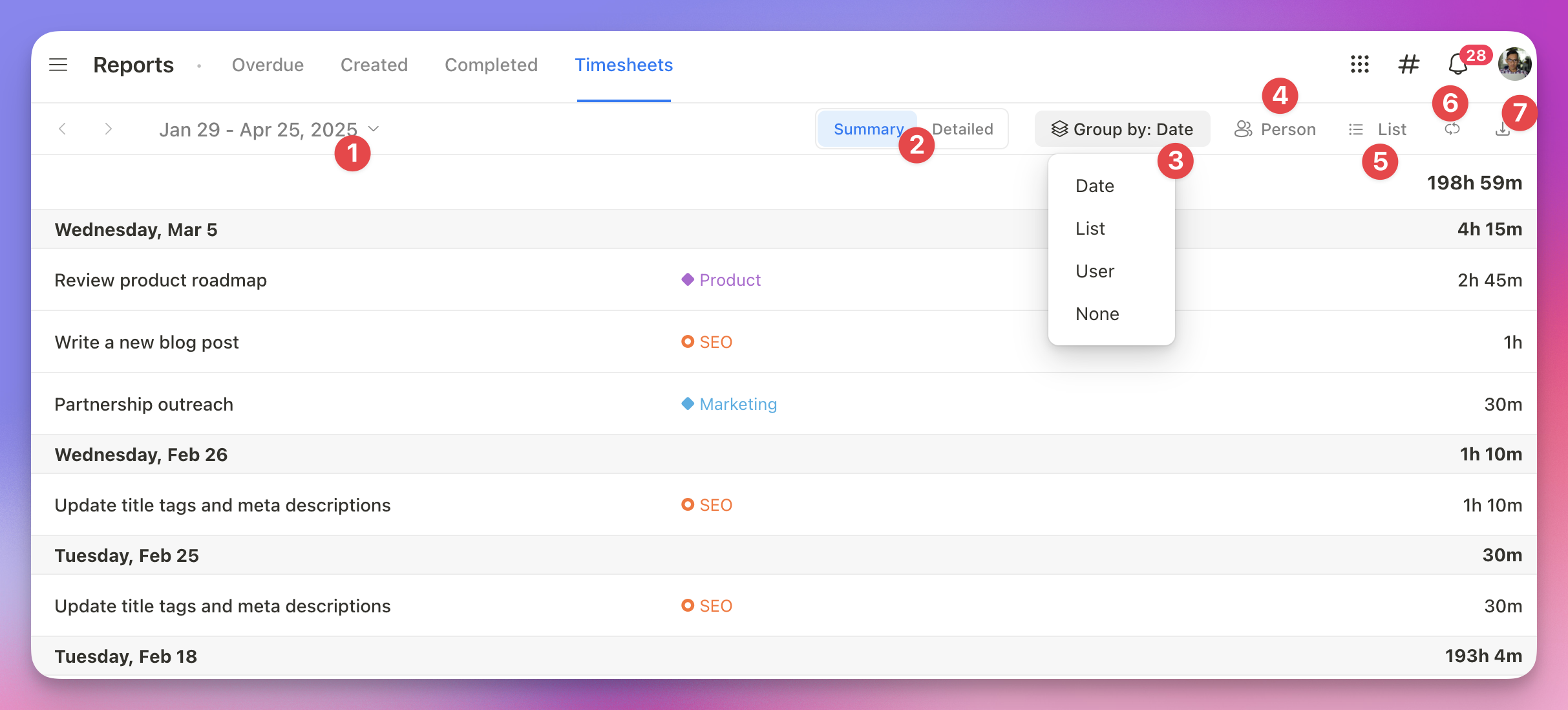
- Select a timeframe.
- Summary/Detailed View:
- Summary: Display the total time tracked for each task within a group. When grouping by date, if you work on the same task multiple times in one day, you'll see the total time tracked for that task on that date.
- Detailed: The Detailed view shows a list of all time entries, with each row representing a single time entry.
- Group tasks/entries by date, project, user, or none.
- Filter by user.
- Filter by project.
- Refresh the page
- Export timesheets to CSV