.png)
Custom task views in projects
Views let you customize how tasks are displayed in a project. Each view can have its own filters, sorting, grouping, and layout, so you can focus on what matters most at any moment.
You can create multiple views within the same project to see your tasks from different perspectives—such as by priority, status, or workflow—without changing the tasks themselves.
Creating a View
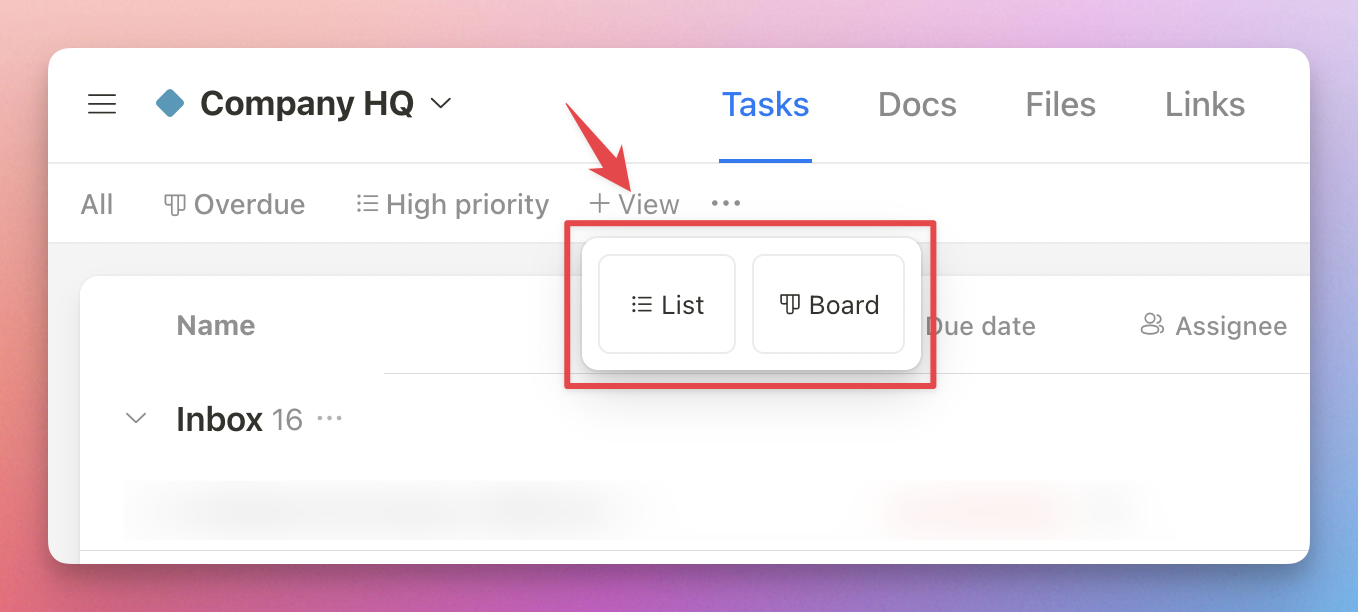
To create a new view, click the “Add View” button. Currently, you can choose between List and Board views. Calendar and Timeline views will be added soon.
Editing a View
To edit a view, click the gear icon at the top right corner. You can rename the view, adjust grouping, sorting, and filters.

Rename a view

If you make changes to the filter or sorting options in the current view, you can either save these changes to the existing view or save them as a new view.

The Default “All” View
The default “All” view has a few key differences from other saved views:
1/ You cannot save filters or sorting to this view. Any changes to filtering or sorting will need to be saved as a new view.

2/ In the View Settings modal, you can adjust the layout and grouping. These changes are automatically saved.

Reordering Views
Click the ellipsis icon next to the “Add View” button to reorder views. Changes will apply to all members in the project.

Private Views
With the Premium plan, you can mark any view you create as private, making it visible only to you.
